
Getting Started Guide
New to modded Minecraft? Been a while? Follow this step-by-step guide to join our servers!
Step 1: You Need a Microsoft Account
Mojang accounts are no longer supported – only Microsoft accounts work for Minecraft.
As of September 19, 2023, old Mojang accounts are permanently locked. Only Microsoft accounts work now. If you missed account migration, you'll need to create or sign into a Microsoft account to buy Minecraft: Java Edition.
Don't Have Minecraft Yet? Here's How:
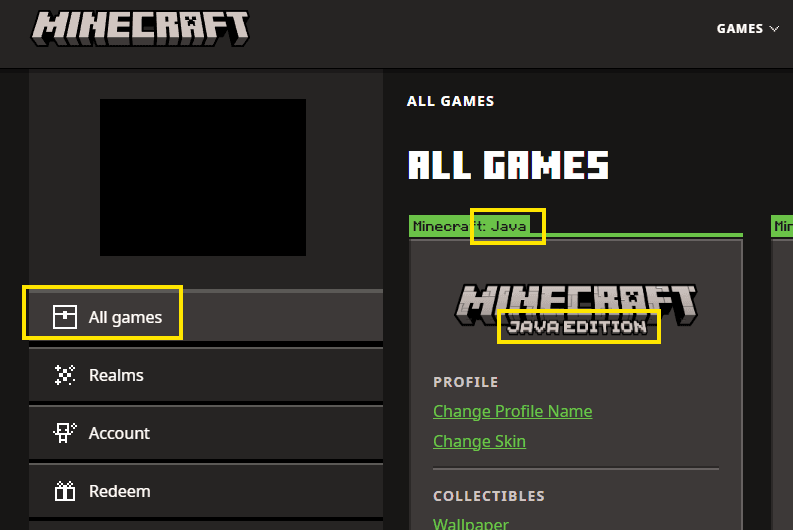
- Go to minecraft.net/login and sign in with your Microsoft account.
- If you already own Minecraft (Java Edition), you'll see it in your games. If not, purchase it while signed in with your Microsoft account: Buy Minecraft here. ( as of Dec 2025 it's on sale for $22.49 )
- (OPTIONAL) Download and install the official Minecraft Launcher from minecraft.net/download. In the next step, CurseForge will handle this for you.
❗ Mojang Accounts Locked
Only Microsoft accounts work. If you can't log in and still have a Mojang account, it is no longer usable.
Step 2: Download CurseForge
Get the CurseForge app to manage modpacks
What is CurseForge?
CurseForge is a platform that makes it easy to download and manage Minecraft modpacks. It handles all the mod installation, version management, and updates automatically.
Download Instructions
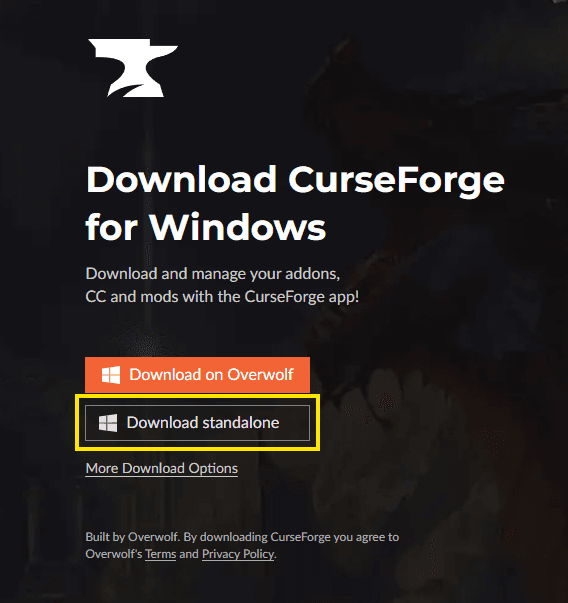
- Visit curseforge.com/download/app
- Click the "Download" button for your operating system (Windows, Mac, or Linux)
- Run the installer and follow the setup wizard
- Launch CurseForge and sign in (you can use your Twitch account or create a CurseForge account)
First Launch Setup
When you first open CurseForge, it will ask you to:
- Sign in or create an account
- Select your Minecraft installation location (usually auto-detected)
- Choose your preferred language
Step 3: Finding and Installing ATM10 Modpack
Locate, install the correct version, and set up the All The Mods 10 modpack
Browse Modpacks
- In CurseForge, change the context to Minecraft then click on "Browse" in the top navbar.
- You'll see a list of popular modpacks. Use the search bar at the top
- Type "All The Mods 10" or "ATM10" in the search box
- Click on "All The Mods 10" from the search results
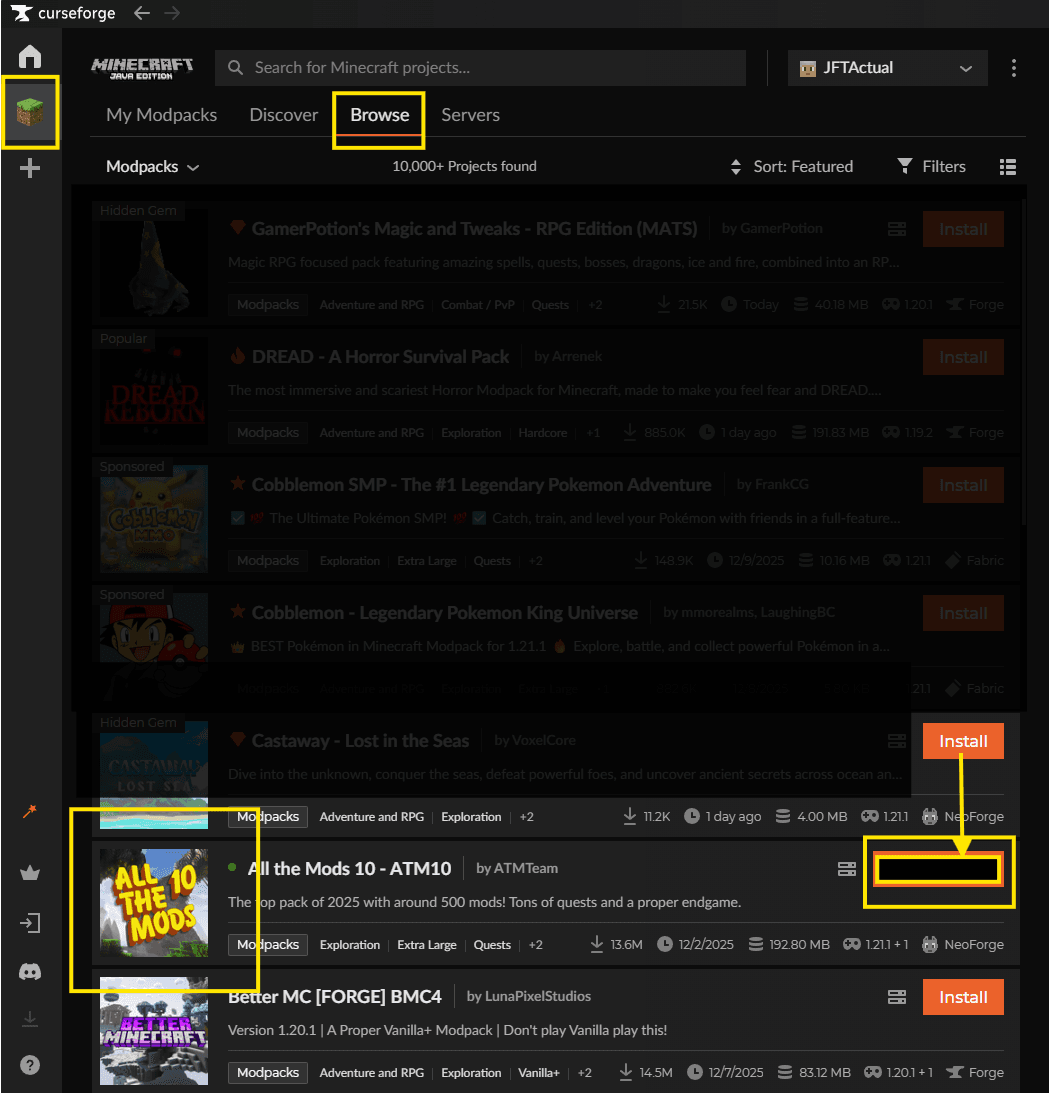
See the example screenshot with Browse and All The Mods 10 circled in yellow.
Installing the Correct Version
📦 Version Information:
Latest version on CurseForge: Loading...
Version our server uses: 5.3.1
Installing the Modpack
After clicking install, CurseForge will:
- Download all required mods automatically
- Set up the correct Minecraft version
- Create a new profile for this modpack
- Install everything in the correct order
This process can take 10-30 minutes depending on your internet speed. You can monitor the progress in the CurseForge downloads section.
Step 4: Client Requirements
Which client to use for which server
Understanding Client Types
Our server network has different servers that require different client setups:
ATM10 Modpack Client (v5.3.1)
Both servers below use this client

Main (ATM10)
The main seasonal server and community hub. Regular resets keep adventures fresh with the latest ATM10 updates.
atm10.exileddimensions.net
Switch: /server atm10

Forever
Permanent builder's world that never resets. Vanilla terrain with ATM10 building tools—your builds last forever.
forever.exileddimensions.net
Switch: /server forever
Vanilla Minecraft Client (v1.12.1)
Pure Minecraft experience - no mods

Vanilla
Pure vanilla Minecraft for friends who want classic gameplay while staying connected to the network community.
vanilla.exileddimensions.net
Switch: /server vanilla
For ATM10 and Forever Servers
Both the Main (ATM10) and Forever servers use the same modpack client. Once you've installed the ATM10 modpack in CurseForge (as described in Step 3), you can use it to connect to either server.
💡 Server Switching:
You can switch between servers using /server atm10 or /server forever while connected. Note: Don't use /server vanilla from an ATM10 client - it will drop you back to the server list. Use the Vanilla client to connect to the Vanilla server.
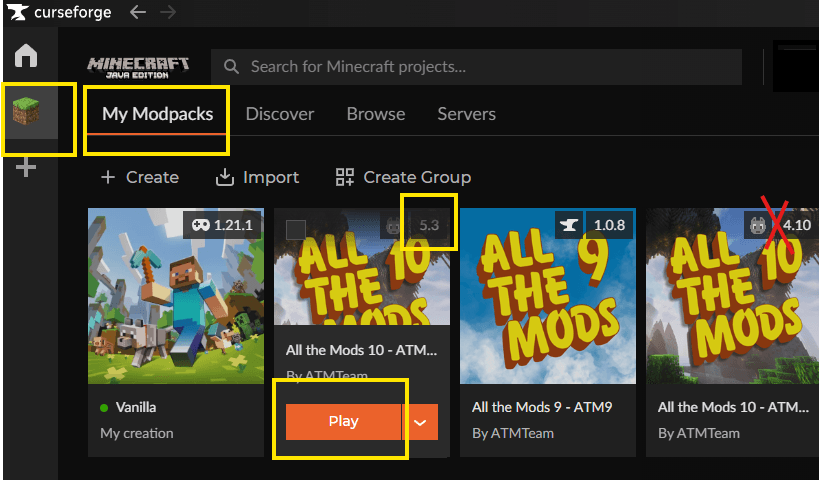
- Open CurseForge
- Find your installed ATM10 profile (it should appear in "My Modpacks")
- Click "Play" to launch Minecraft with the modpack
- Once in-game, you can connect to either server using the server selector
Step 5: Teaming Up & Chunk Claiming (Free Tier!)
Protect your builds and get your free starter perks
Getting Your First Free Chunk Claims
Chunk claims protect your builds, chests, and farms from other players. When you claim a chunk (a 16x16 block area), only you can build, break blocks, or access containers in that area. This prevents griefing and theft, making it essential for protecting your hard work on a multiplayer server.
If you're playing with friends, you can create a team using FTB Teams. When you're on a team, you can share your chunk claims with your teammates so everyone can build and access chests together. Your team shares the same protected area, making it perfect for collaborative builds and shared bases. You can learn more about advanced team features and settings in our more detailed tutorial.
To get started with teams, use these commands:
/ftbteams create <team name>
/ftbteams invite <player name>
As a new player, you can get your first chunk claims for free! Here's how:
- Visit our Store page on the website
- Look for the "Starter" or "First Tier" package (it should be marked as Free)
- Click on the package to view details
- Click "Add to Basket" and complete the checkout process
- Even though it's free, you'll need to "purchase" it to receive the benefits
- After checkout, log into the server and your free chunk claims will be available
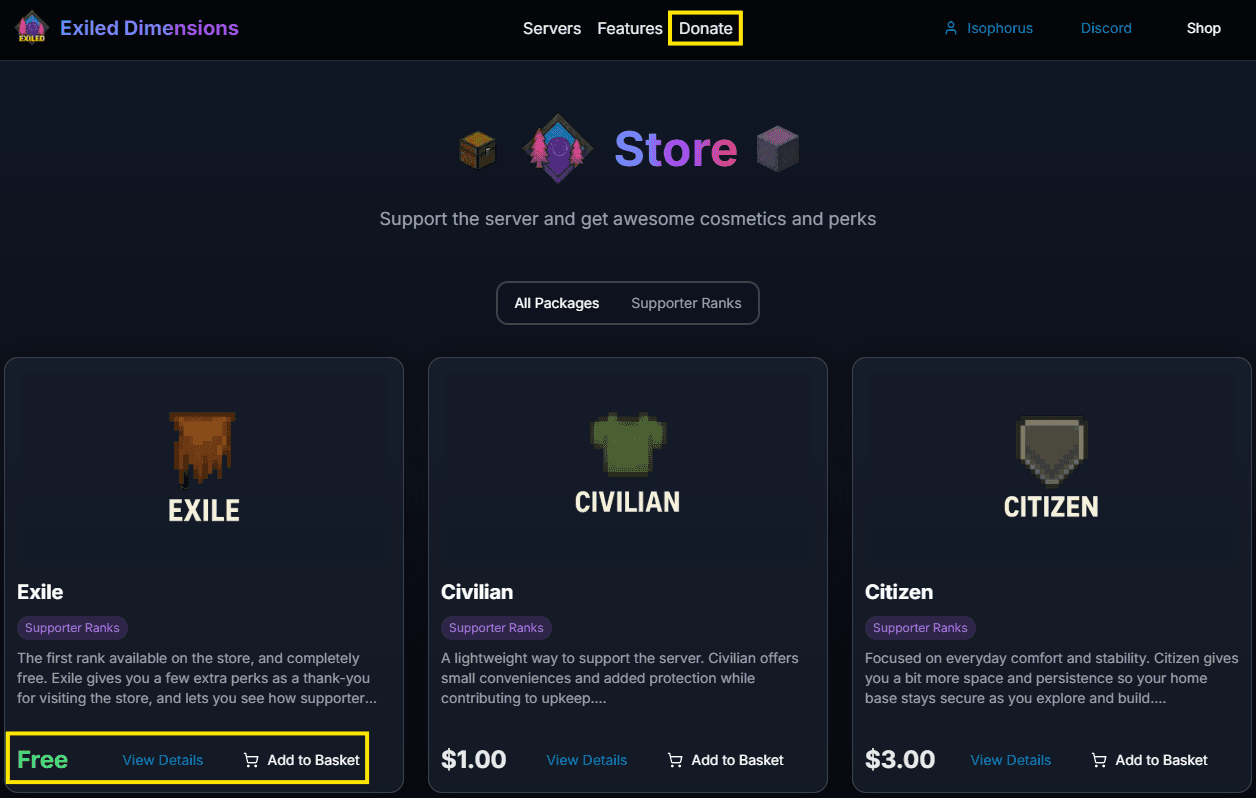
💡 Tip:
The free tier package also includes free /sethomes, which lets you set teleport points to quickly return to your base!
What is Chunk Claiming?
Chunk claiming is a protection system that prevents other players from building, breaking blocks, or stealing items in your claimed area. When you claim a chunk, you have full control over that 16x16 block area.
This is essential for protecting your builds, farms, and valuable items from griefing or theft.
Using /sethomes
The /sethomes command allows you to set named teleport points. This is incredibly useful for:
- Quickly returning to your base
- Marking important locations (mines, farms, etc.)
- Creating a network of teleport points across the world
After claiming your free tier, you'll be able to use commands like:
/sethome base
/sethome mine
/home base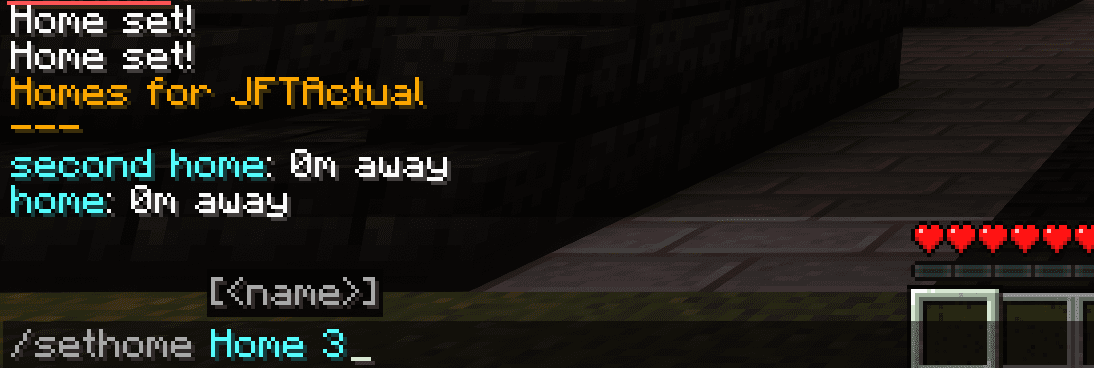
Opening the Chunk Map (FTB Chunks)
In ATM10, chunk claiming and protection are managed with FTB Chunks. Claiming is done through a map interface, not a physical item.
To access the chunk claiming GUI:
- Press
M(default key for FTB Chunks map) on your keyboard while in-game. - The FTB Chunks map will open, showing a grid of all chunks around you, with your current position and any claims.
- You can move and resize the chunk map window as you like—just click and drag the title bar to reposition it, or use the resize handle at the bottom right.
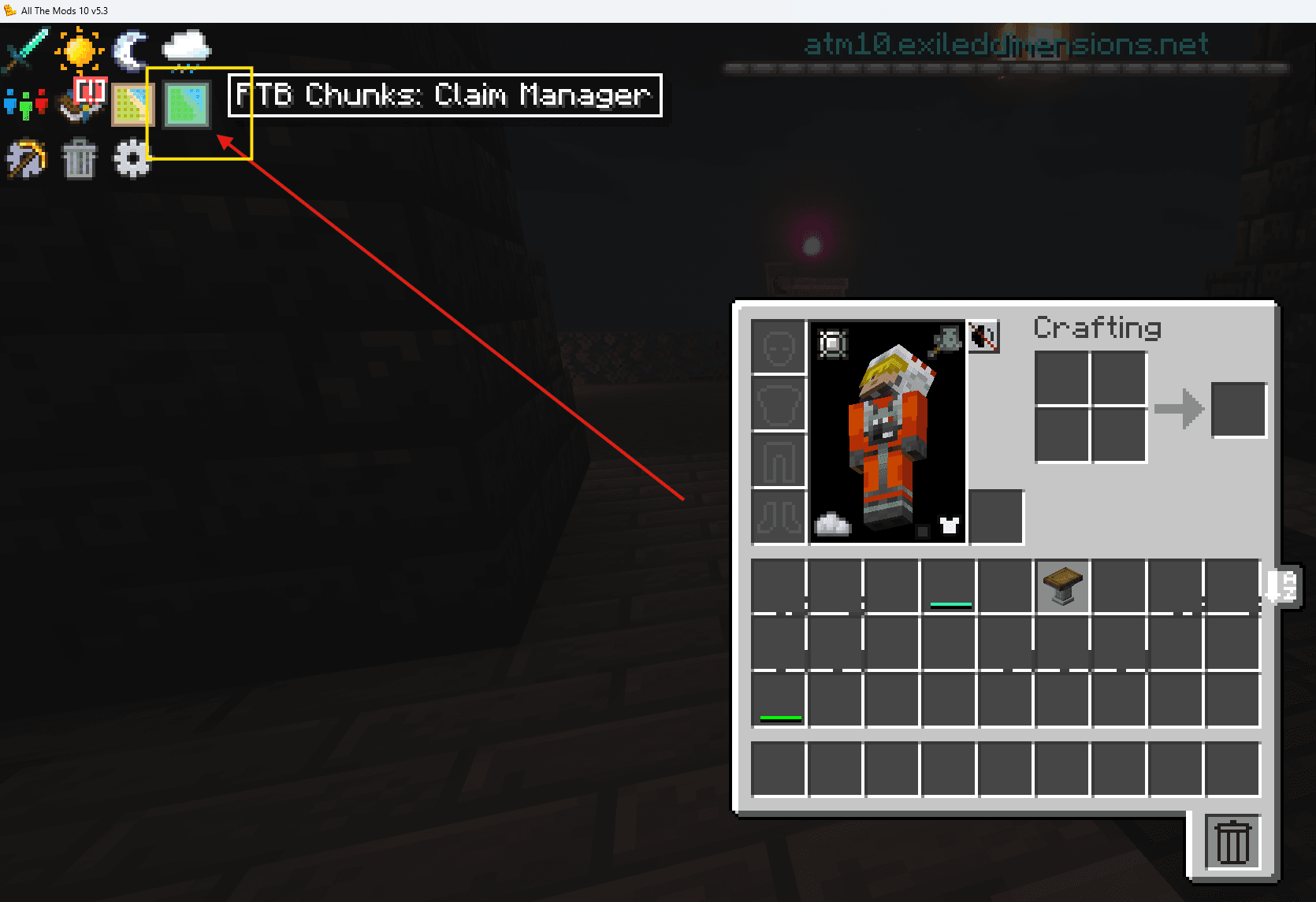
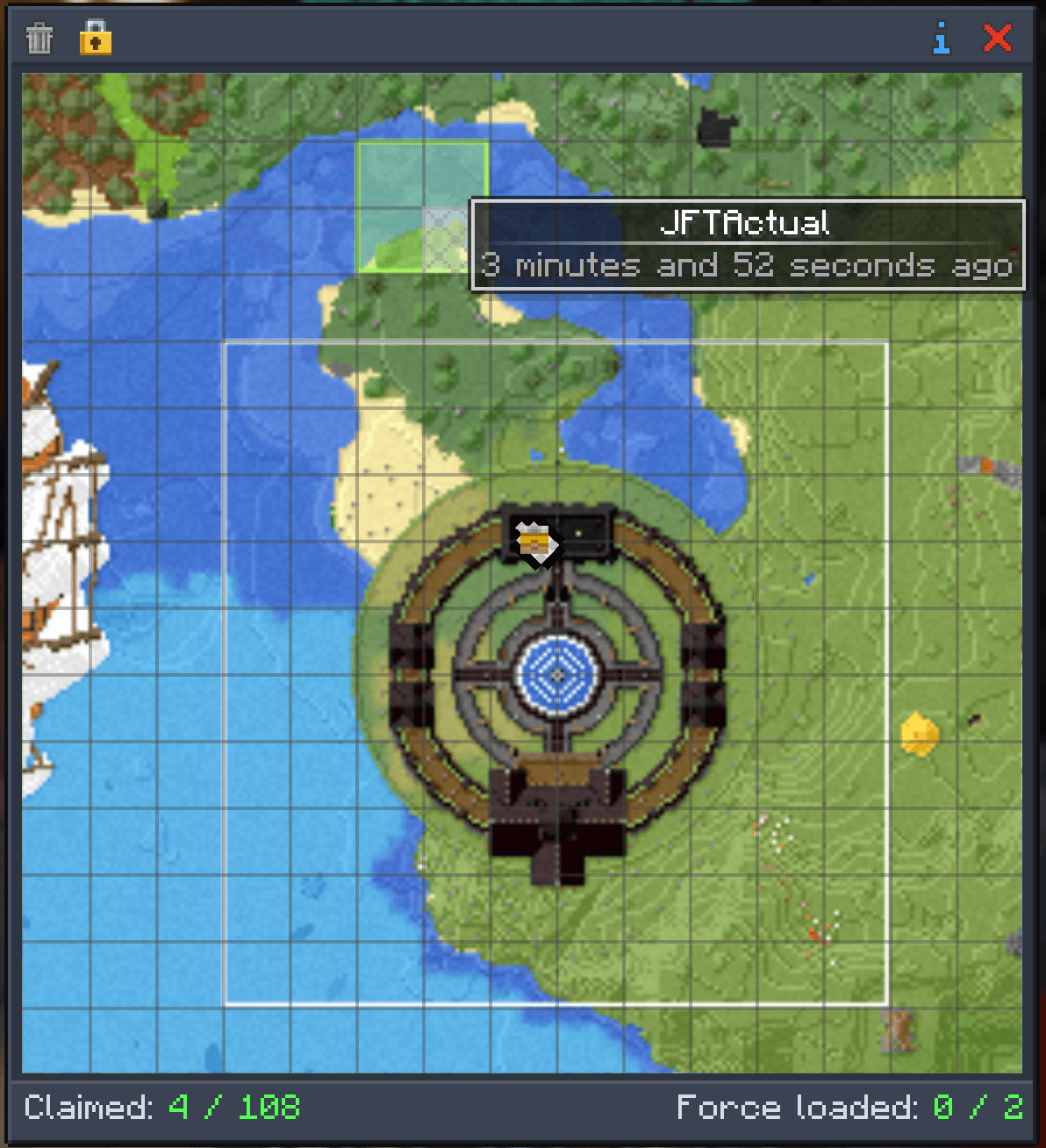
Tip:
If M doesn’t open the chunk map, check your controls in Minecraft settings → Key Binds and search for “FTB Chunks”.
How to Claim Chunks In-Game
Once you have chunk claims available, here's how to use them:
- Stand in the chunk you want to claim (a chunk is a 16x16 block area)
- Open your inventory and look for the chunk claiming item (usually a golden shovel or similar)
- Right-click while holding the claiming item, or use the claim command (usually
/claimor/chunk claim) - The chunk borders will be visible, showing you've successfully claimed it

📋 Chunk Claiming Controls Reference
Claiming
Forceloading
Misc
💡 Pro Tip:
You can see chunk borders by pressing F3+G (this shows the chunk grid). This helps you understand where one chunk ends and another begins.
Ready to Join?
You're all set! Connect to our servers and start your adventure.